
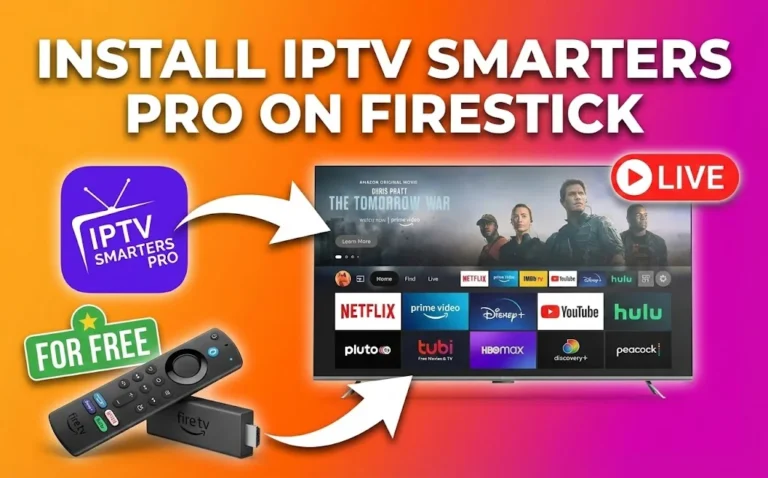
Have you ever wanted to watch live football streaming, catch up on your favorite UK channels, or access thousands of international programs, all from your Amazon Fire TV Stick? If you’re tired of expensive cable subscriptions and limited viewing options, IPTV Smarters Pro on Firestick is the solution you’ve been searching for.
In this guide, you’ll learn exactly how to install IPTV Smarters Pro on your Firestick for free, step by step. Whether you’re new to Internet Protocol Television or you’ve tried other IPTV apps before, this tutorial makes the process simple, fast, and beginner-friendly.
By the end of this article, you’ll have IPTV Smarters Pro running smoothly on your Firestick, ready to stream live channels, sports, movies, and on-demand content from your IPTV subscription provider.
Let’s get started.
What Is IPTV Smarters Pro?
IPTV Smarters Pro is a popular video player application designed specifically for streaming IPTV subscriptions on devices like Amazon Firestick, Android TV boxes, smartphones, and tablets. Unlike traditional cable TV, IPTV delivers live channels, movies, and series over the internet, giving you access to thousands of global channels at a fraction of the cost.
The app was developed specifically for IPTV subscribers who want a clean, professional interface to manage their content. It supports both live television and video-on-demand libraries, making it a complete entertainment solution. The application has become increasingly popular among UK IPTV users because of its reliability, ease of use, and compatibility with virtually every major IPTV subscription service available today. And some of you may wonder,is this app legal to use? Is IPTV legal? The app itself is completely legal—what matters is choosing a licensed IPTV provider.
What sets this app apart from generic media players is its purpose-built design for handling IPTV streams efficiently. It manages large channel lists smoothly, maintains stable connections even during peak viewing hours, and provides an intuitive interface that doesn’t overwhelm new users. For anyone exploring options for streaming Internet Protocol Television on their Firestick, this application consistently ranks among the top recommendations in online forums and review sites.
Why Choose IPTV Smarters Pro for Firestick?
IPTV Smarters Pro stands out because it supports multiple IPTV playlist formats, including M3U URLs and Xtream Codes API, making it compatible with nearly every UK IPTV provider. This flexibility means you won’t be locked into a specific provider or format, giving you the freedom to switch services if needed without having to learn a completely new application.
The app’s architecture is specifically optimized for the Firestick’s hardware capabilities. It runs smoothly even on older Firestick models, manages memory efficiently, and doesn’t cause the overheating issues that some heavier applications can trigger. This optimization ensures a consistent streaming experience regardless of which Fire TV device you own, whether it’s the basic Firestick Lite or the powerful Fire TV Cube.
Key Features:
- Supports live TV channels, movies, series, and catch-up content
- Works with M3U IPTV playlists and Xtream Codes logins
- Built-in Electronic Program Guide (EPG) for easy navigation
- Parental controls to restrict access to certain content
- Multi-screen and picture-in-picture support
- Compatible with external video players like MX Player and VLC
- Favorites and channel sorting options
- Multiple user profiles under one login
- Recording capabilities (with compatible subscriptions)
- Completely free to download and use
Whether you’re watching soccer streams, catching matches from the best IPTV for EFL services, or exploring British IPTV channels, IPTV Smarters Pro provides a smooth, user-friendly viewing experience on your Firestick. The app handles everything from basic channel switching to advanced features like scheduled recordings, all while maintaining a simple interface that beginners can navigate confidently.
IPTV Smarters vs Other Popular Apps
While there are several IPTV apps available for Firestick, IPTV Smarters Pro remains one of the most popular choices. Here’s how it compares:
IPTV Smarters Pro vs TiviMate: Both are excellent options. TiviMate offers a slightly more polished interface and advanced EPG features, but IPTV Smarters Pro is easier for beginners and has broader format support out of the box.
IPTV Smarters Pro vs Perfect Player: Perfect Player is lightweight and fast, but IPTV Smarters Pro offers more features like parental controls, multiple profiles, and better Xtream Codes integration.
IPTV Smarters Pro vs GSE Smart IPTV: GSE Smart IPTV is powerful but has a steeper learning curve. IPTV Smarters Pro strikes a better balance between features and simplicity.
For most users, especially those new to Firestick IPTV streaming, IPTV Smarters Pro provides the best combination of features, compatibility, and ease of use. The development team regularly releases updates that improve stability, add new features, and ensure compatibility with the latest Firestick firmware updates. This ongoing support means you can rely on the app to work consistently without worrying about abandonment or outdated functionality.
What You Need Before Installing IPTV Smarters Pro
Before you begin the installation process, make sure you have the following:
1. Amazon Fire TV Stick (Any Generation)
This guide works with all Firestick models, including:
- Fire TV Stick (2nd and 3rd Gen)
- Fire TV Stick 4K
- Fire TV Stick 4K Max
- Fire TV Stick Lite
- Fire TV Cube (all generations)
The installation process is identical across all these devices. Even if you have an older Firestick model, IPTV Smarters Pro will work perfectly. The app’s developers have ensured broad compatibility, so you don’t need to worry about having the latest hardware. That said, newer models will provide slightly better performance, especially when streaming 4K content or handling very large channel lists with thousands of options.
2. Active Internet Connection
A stable internet connection is essential for streaming IPTV content. Your internet speed directly impacts the quality of your viewing experience:
- Minimum speed: 10 Mbps for standard definition (SD) quality
- Recommended: 25+ Mbps for high definition (HD) streaming
- Ideal: 50+ Mbps for 4K content and multi-device use
💡 Pro Tip: Use a wired Ethernet connection if possible. You can connect your Firestick to your router using an Ethernet adapter for more stable streaming, especially during peak hours or when watching live football streaming.
The quality of your internet connection matters more than the speed alone. A stable 25 Mbps connection with low latency will outperform an unstable 50 Mbps connection that drops packets or experiences frequent slowdowns. If you frequently experience buffering issues with other streaming services like Netflix or Amazon Prime Video, you’ll likely encounter similar problems with IPTV streaming until you address your connection stability.
3. IPTV Subscription or Free Trial
IPTV Smarters Pro is just a player app. To watch content, you need an IPTV subscription from a provider. The app itself doesn’t provide any channels or content—it simply plays the streams provided by your IPTV suppliers.
Many reputable providers offer IPTV free trial periods (typically 24-72 hours) so you can test the service before committing to a paid plan. This is highly recommended, especially if you’re new to IPTV streaming.
When choosing a provider, look for:
- Large channel selection including UK IPTV channels
- HD and 4K streaming quality
- Reliable uptime (99%+ is ideal)
- EPG (Electronic Program Guide) support
- Multiple device connections
- Responsive customer support
- Xtream Codes or M3U playlist access
Some providers specialize in specific content. For example, if you’re a football fan, you’ll want a service with comprehensive soccer stream coverage. Providers like United Kingdom IPTV© offer tailored packages for sports enthusiasts alongside general entertainment channels, ensuring you get the specific content you care about most without paying for unnecessary extras.
Understanding the difference between the IPTV app and the IPTV subscription is crucial for newcomers. The app is like a television set, it displays content but doesn’t generate it. Your subscription is like a cable connection; it provides the actual channels and programming. You need both components working together to enjoy IPTV streaming on your Firestick.
4. Downloader App (We’ll Install This First)
The Downloader app is a free tool available on the Amazon App Store. It lets you easily install third-party apps like IPTV Smarters Pro that aren’t available directly on the Firestick store. This app is completely legal and safe to use.
5. Your IPTV Login Details
Before setting up the app, make sure you have received your login credentials from your provider. These will be in one of two formats:
Option A: M3U URL
 A single web link that looks like:
http://example.com:8080/get.php?username=yourname&password=yourpass&type=m3u_plus
Option B: Xtream Codes API
Three separate pieces of information:
Server URL (e.g.,http://example.com:8080)
Username
Password
Keep these details handy—you’ll need them during setup.
Step-by-Step: Install IPTV Smarters Pro On Firestick
This is the easiest and most popular method to get Smarters IPTV running on your Firestick. The entire process takes about 10 minutes, even for complete beginners.
Step 1: Install the Downloader App
First, we’ll install the Downloader app from the Amazon App Store:
- From your Firestick home screen, select Find or use the search icon (magnifying glass icon)
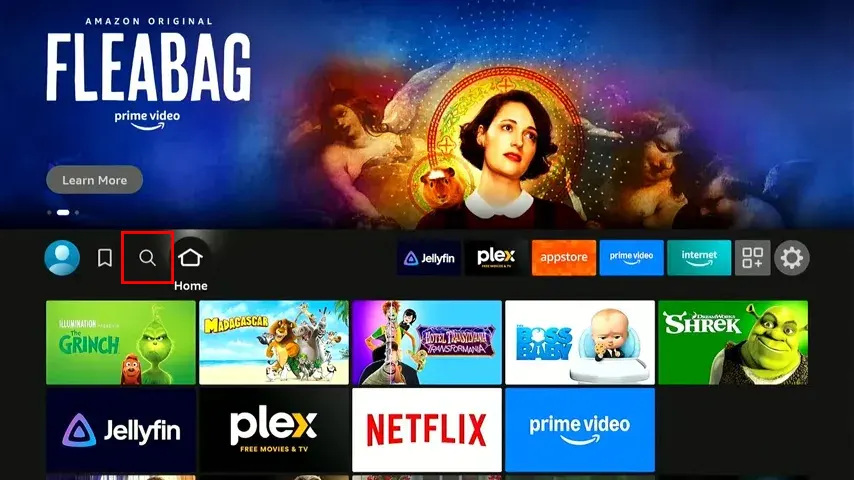
- Click Search
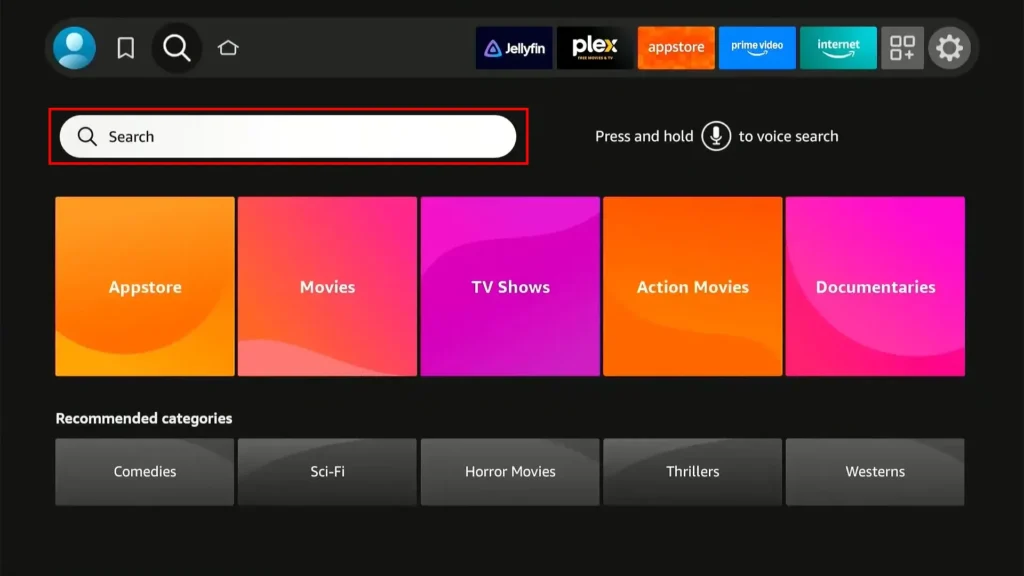
- Type “Downloader” using the on-screen keyboard
This is the app we’ll use to sideload IPTV Smarters Pro on your FireStick. Follow the on-screen instructions and install it.
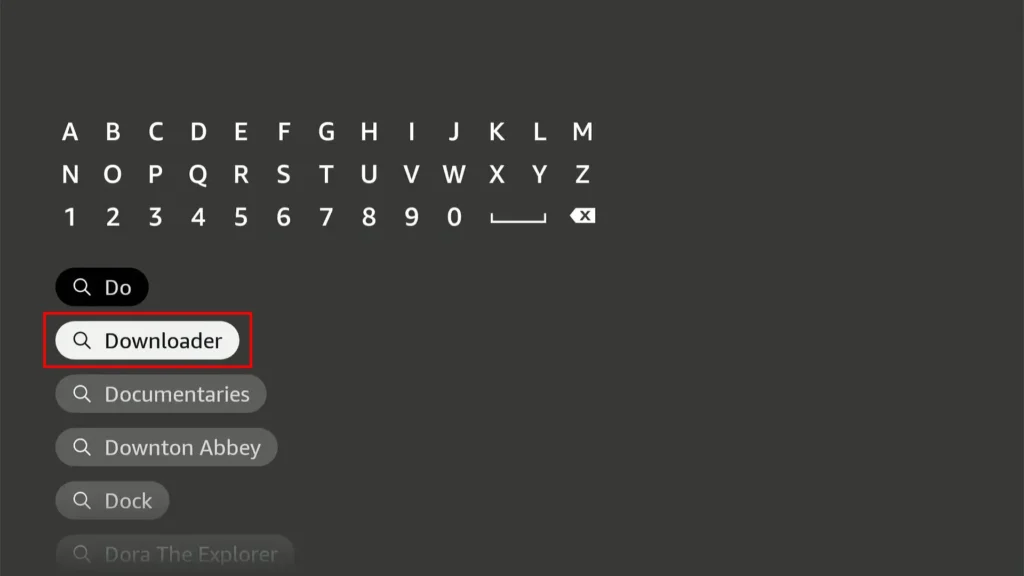
- Select the Downloader by AFTVnews app from the search results (it has an orange icon)
- Click Download or Get
- Wait for the installation to complete (usually takes 10-20 seconds)
Step 2: Enable Apps from Unknown Sources
Now that the Downloader app is installed on your Firestick, you need to allow installations from outside the Amazon App Store. This is a standard security feature on Firestick devices.
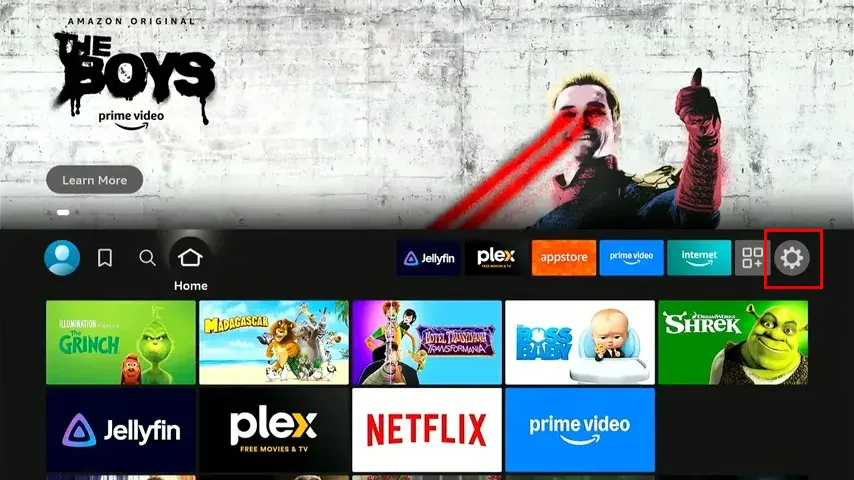
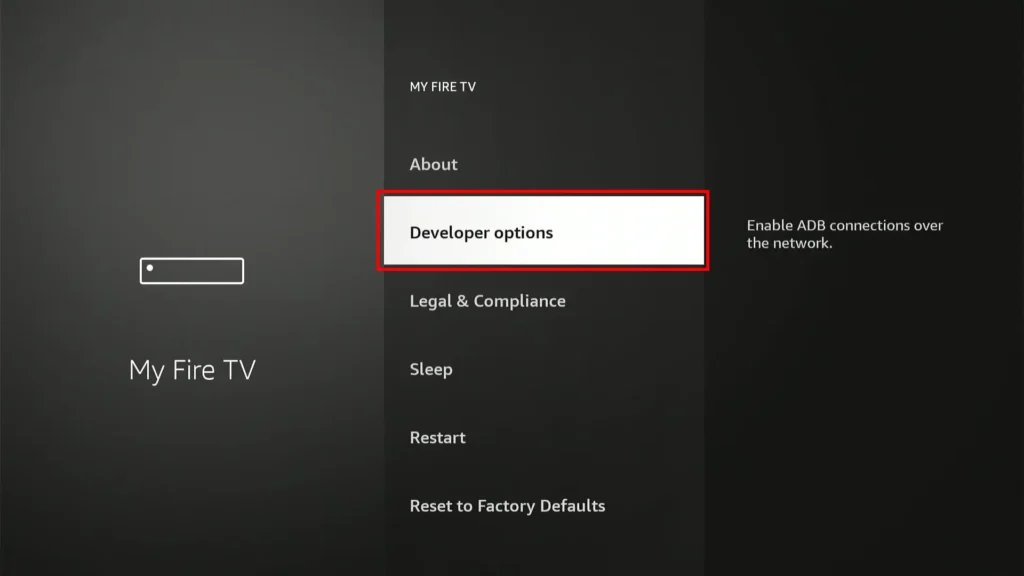
- Return to your Firestick home screen and navigate to Settings (the gear icon at the top)
- Select My Fire TV (or Device on older Firestick models)
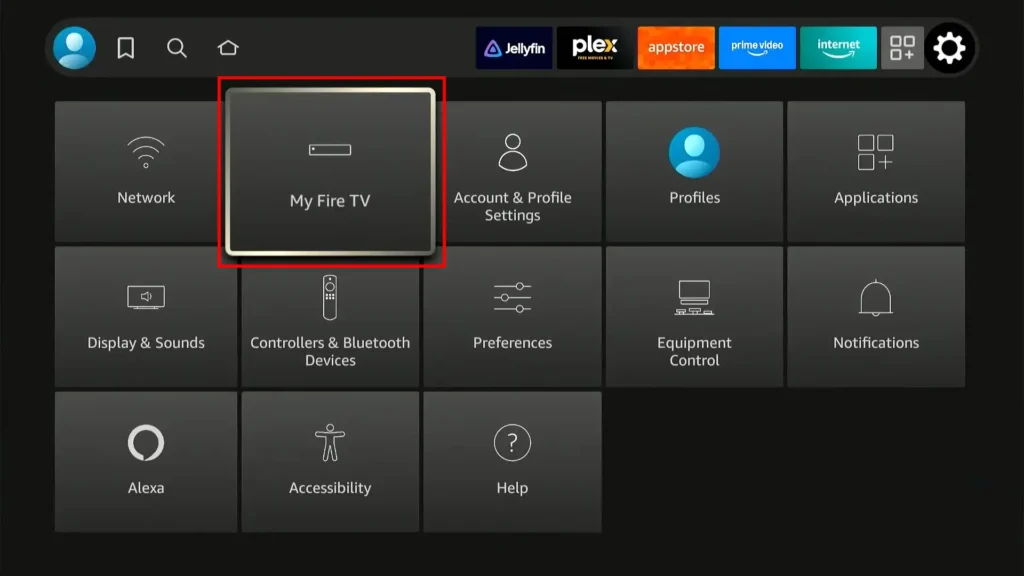
- Choose Developer Options
⚠️ Important Note:
If you do not see Developer Options, go to Settings > My Fire TV > About. Now, select Fire TV Stick (or “Fire Tv Stick 4K max” on other devices) and click it 7 times to enable Developer Options.
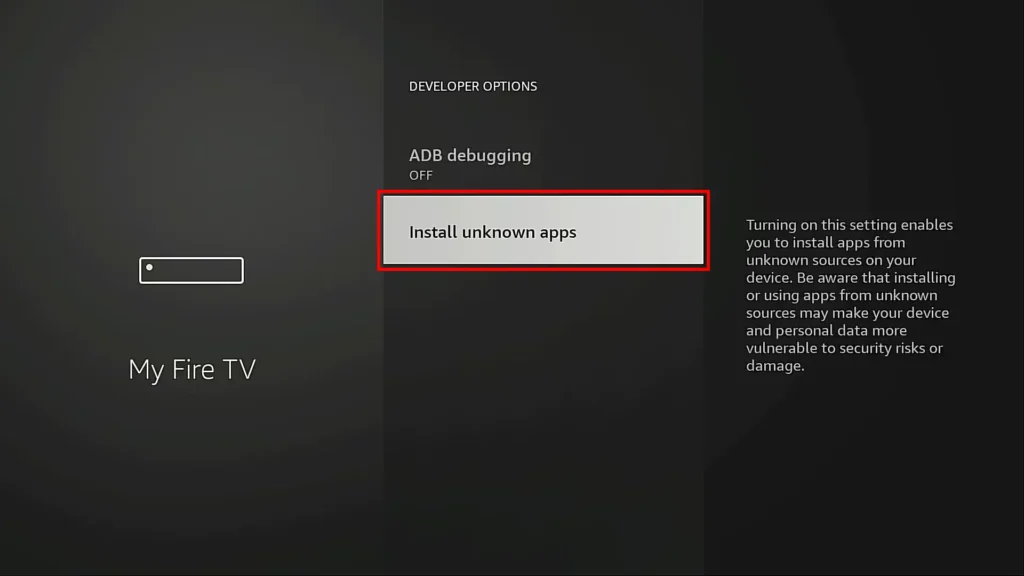
- Click Install Unknown Apps (or Apps from Unknown Sources on older interfaces)
- Select Downloader from the list
- Toggle the switch to ON (Turn the option ON for the Downloader app.)
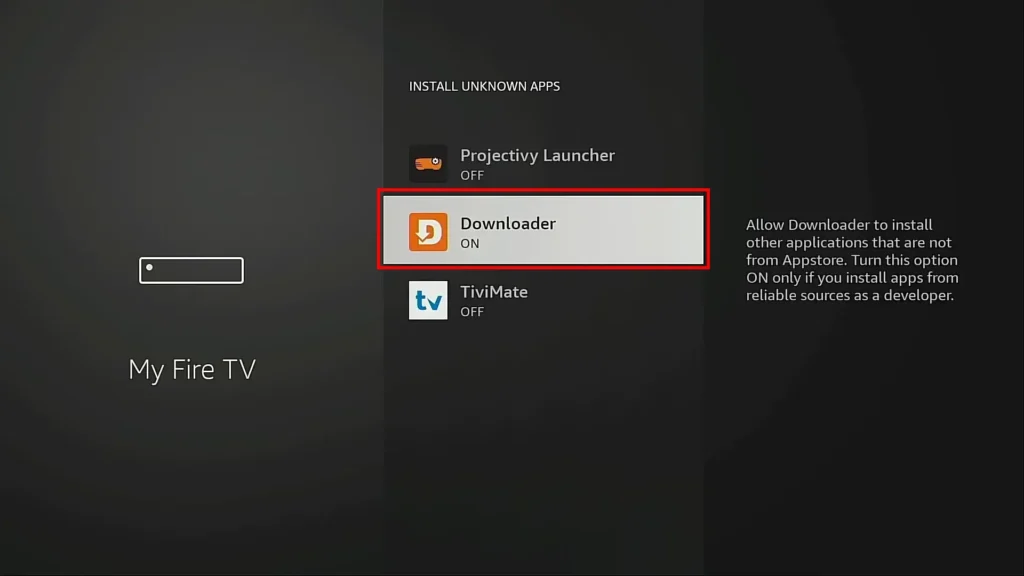
A warning message will appear explaining that installing apps from unknown sources can harm your device. Don’t worry—this is just a standard security warning. Click Turn On to confirm.
This setting is completely safe when you’re downloading from reputable sources like the official IPTV Smarters website. You’re simply giving permission for the Downloader app to install applications.
🔒 Security Note: Only download apps from trusted sources. The links we provide in this guide are the official IPTV Smarters Pro download sources.
Step 3: Download IPTV Smarters Pro APK
Now you’ll use Downloader to fetch the IPTV Smarters Pro installation file directly from the official source:
- Open the Downloader app if it’s not already open
When you open Downloader for the first time, you’ll see some welcome prompts. Just click through them or dismiss them—the default settings work fine.
- You’ll see a URL field on the home screen
- Click inside the URL box (it may show a blinking cursor)
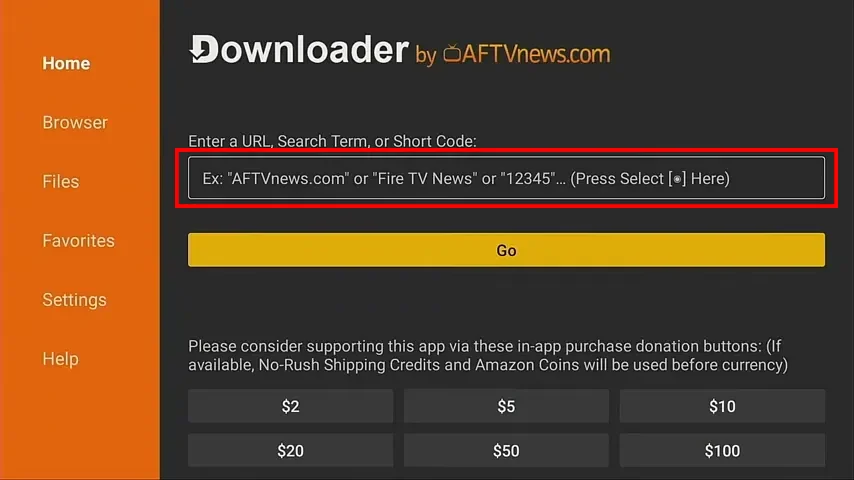
- Enter one of these exact links:
Primary URL:
https://www.iptvsmarters.com/iptv-smarters-5.0.apk
OR use the code:
6468112
OR use the shortened URL:
firesticktricks.com/smarter
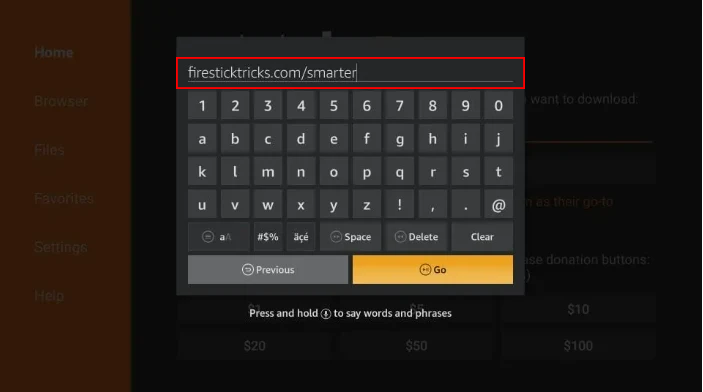
- Click Go on the on-screen keyboard
- The app will begin downloading the IPTV Smarters Pro APK file
- You’ll see a progress bar—this usually takes 15-30 seconds, depending on your connection speed
⚠️ Important: Make sure you type the URL exactly as shown above. Any typos will result in a download error.
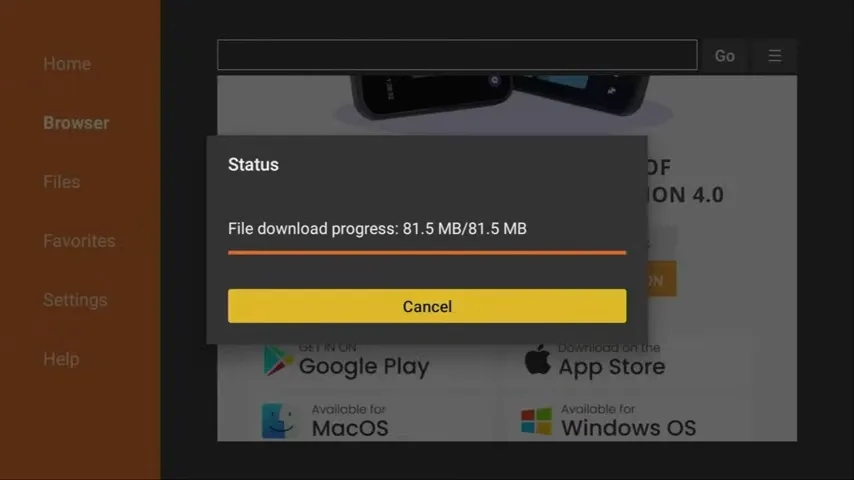
Step 4: Install IPTV Smarters Pro
- Once the download completes, an installation prompt will appear automatically
- Click Install on the bottom right of the screen
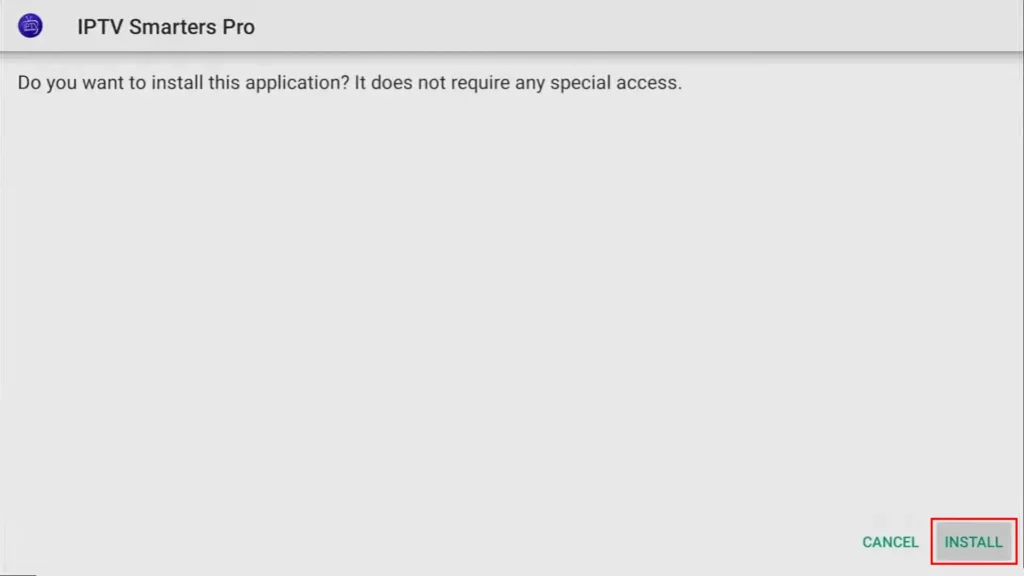
- Wait for the installation to finish (typically takes 10-15 seconds)
- When complete, you’ll see two buttons: Open and Delete
- Click Delete first—this removes the APK file from your Firestick to free up space
- Then click Open to launch IPTV Smarters Pro for the first time
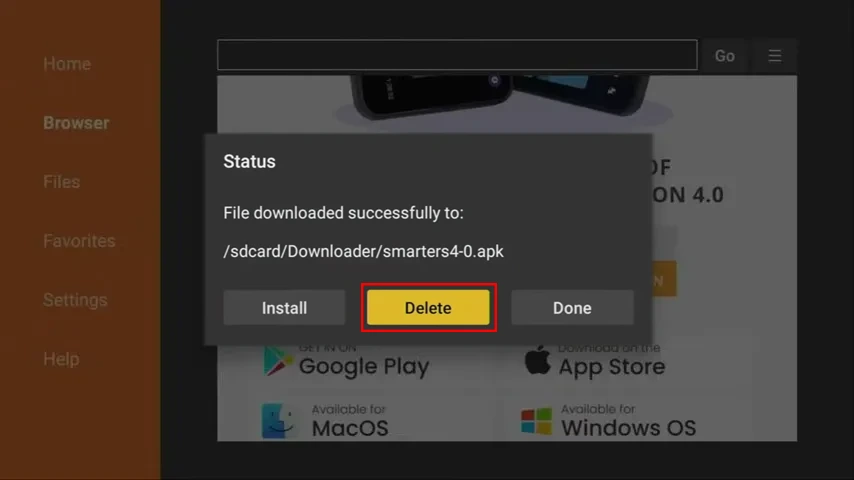
Congratulations! You’ve successfully installed IPTV Smarters Pro on your Firestick. Now let’s set it up so you can start watching content.
Alternative Installation Methods (For Advanced Users)
While the Downloader method above is the easiest, there are other ways to install Smarters IPTV Pro on your Firestick:
Method 2: Using ES File Explorer
This method is for users who prefer ES File Explorer or already have it installed:
- Install ES File Explorer from the Amazon App Store
- Enable installation from unknown sources (same as Step 2 above)
- Open ES File Explorer and navigate to the Downloader section
- Enter the IPTV Smarters Pro URL
- Download and install the APK file
Method 3: Sideloading via PC
If you have technical knowledge, you can sideload the app using ADB (Android Debug Bridge):
- Enable ADB debugging on your Firestick
- Install ADB on your PC
- Download the IPTV Smarters Pro APK to your computer
- Connect to your Firestick via ADB
- Use the adb install command to push the APK to your device
This method is more complex and only recommended for users comfortable with command-line tools.
Method 4: Using Apps2Fire
Apps2Fire is an Android app that lets you send APK files from your smartphone to your Firestick wirelessly. This is useful if you have the IPTV Smarters Pro APK already downloaded on your phone.
For most users, the Downloader method (detailed in the main guide) remains the simplest and most reliable option.
How to Use IPTV Smarters on FireStick (clear & simple)
Now that IPTV Smarters Pro is installed, let’s configure it with your IPTV subscription details.
First Launch Setup
As mentioned earlier, IPTV Smarters does not provide any channels on its own. It is simply a powerful media player app that allows you to stream live channels & content supplied by the IPTV service providers.
Therefore, to use IPTV Smarters, you must have an active IPTV subscription from at least one iptv service provider.
- Open IPTV Smarters Pro from your Firestick apps menu
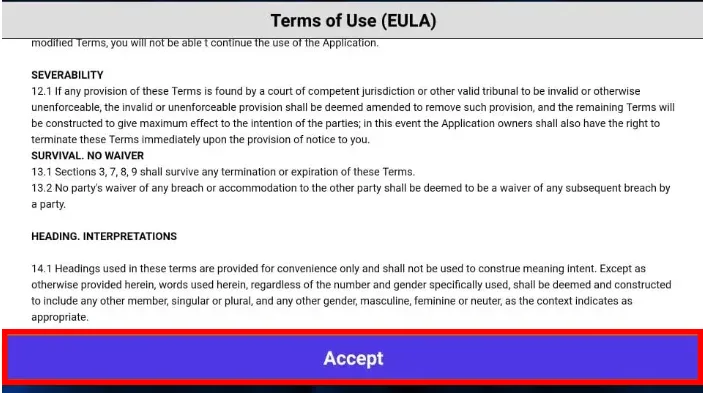
- When you open the IPTV Smarters app for the first time, the Terms of Use screen will appear. Scroll down and select Accept to continue.
- You’ll then see login options
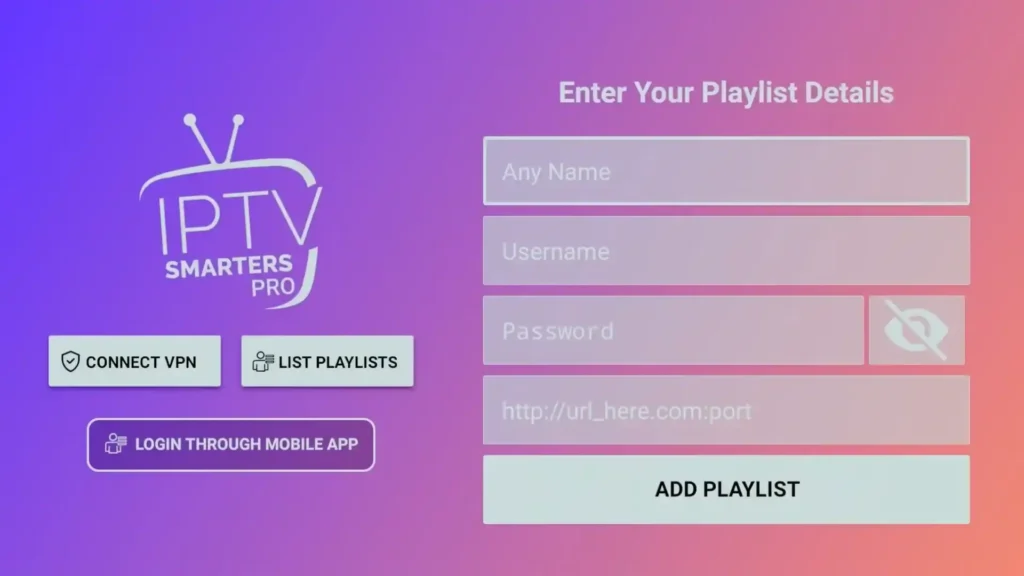
- Choose your login method based on what your provider gave you:
- Load Your Playlist or File/URL (for M3U links)
- Login with Xtream Codes API (for Xtream Codes)
Why Use Xtream Codes Instead of M3U URLs
M3U playlist links are really long and hard to type into your app, especially when you’re using a FireStick remote.
That’s why it’s better to use Xtream Codes API. These are way shorter and much easier to type in.
Note: Even though Xtream Codes got shut down, most IPTV services still use this same type of login system, so it should still work fine.
How to Get Your Xtream Codes Login Info:
Your IPTV provider usually sends you the Xtream Codes login details in the same email where they send your M3U link. If you didn’t get them, just contact your provider and ask for them.
How to Login:
When you click on “Login with Xtream Codes API,” you’ll see a screen where you type in your login information – usually a server address, username, and password.
Setting Up with M3U URL
If your provider gave you an M3U playlist link:
- Select Load Your Playlist or File/URL
- Choose Add URL
- Enter a Playlist Name (e.g., “United Kingdom IPTV” or “My IPTV”)
- Paste your M3U URL in the File/URL field
- Click Add or OK
- Wait for the playlist to load (this may take 30-60 seconds)
- Once loaded, you’ll see your channels organized by category
Setting Up with Xtream Codes
If your provider gave you Xtream Codes credentials:
- Select Login with Xtream Codes API
- Enter your Username
- Enter your Password
- Enter the URL (server address)
- Click Add User
- The app will connect to your provider’s server
- Your channels, movies, and series will appear automatically
💡 Pro Tip: Xtream Codes typically provides a better experience than M3U because it supports EPG (TV guide), catch-up TV, and better organization of content.
Navigating the IPTV Smarters Pro Interface
Once logged in, you’ll see the main interface with these sections:
- Live TV: Access all your live television channels organized by category (Sports, Entertainment, News, etc.)
- Movies: Browse on-demand movies from your provider’s library
- Series: Access TV series with multiple seasons and episodes
- Settings: Configure app preferences, parental controls, and player settings
- Account: Manage your login, switch between providers, or add additional accounts
Understanding IPTV Streaming Quality and Bandwidth Requirements
One of the most important aspects of enjoying IPTV on Firestick is understanding how streaming quality relates to your internet connection. Many users encounter buffering issues simply because they’re trying to stream quality levels their connection can’t consistently support.
How Streaming Quality Affects Performance
When you watch Internet Protocol Television through IPTV Smarters Pro, the stream quality directly determines how much bandwidth your connection needs. Standard definition channels require the least bandwidth, typically around 3-5 Mbps per stream. High definition channels demand significantly more, usually 8-12 Mbps for 1080p content. For 4K streaming, you’re looking at 25-35 Mbps minimum per stream.
These requirements multiply if multiple devices in your home are streaming simultaneously. A family with three people watching different IPTV streams in HD would need approximately 24-36 Mbps just for the IPTV traffic, not counting other internet usage like web browsing, social media, or online gaming. This is why many IPTV pro services recommend having 50+ Mbps connections for households with multiple viewers.
The type of content also affects bandwidth usage. Sports broadcasting, particularly live football streaming with fast-moving action, requires more bandwidth than static content like talk shows or news programs. This is because rapid movement creates more complex video data that takes more bandwidth to transmit clearly. Understanding this helps you adjust quality settings appropriately for different types of content.
Optimizing Your Network for IPTV Box Performance
Several practical steps can improve your streaming experience. First, position your WiFi router centrally in your home and away from interference sources like microwaves, cordless phones, or thick walls. If your Firestick is far from your router, consider using a WiFi extender to strengthen the signal in your viewing area.
For the best possible performance, use a wired Ethernet connection whenever possible. You can purchase an Ethernet adapter for your Firestick that plugs into the micro-USB port and provides a direct network connection. This eliminates WiFi interference, reduces latency, and provides more consistent speeds, especially valuable during peak viewing hours when many neighbors might be using WiFi simultaneously.
Consider upgrading your router if it’s more than a few years old. Modern routers with dual-band or tri-band capabilities can handle IPTV streaming much better than older single-band models. They also support more simultaneous connections and often include quality of service (QoS) features that prioritize video streaming traffic over less time-sensitive data.
Optimizing IPTV Smarters Pro for Best Performance
To get the smoothest streaming experience on your Firestick, follow these optimization tips:
1. Configure Video Player Settings
- Go to Settings in IPTV Smarters Pro
- Select Player Settings
- Choose External Player and select MX Player or VLC if you have them installed
- Enable Hardware Acceleration if available
- Adjust Buffer Size to “Large” if you experience stuttering
2. Set Up Parental Controls
If you have children in the house:
- Navigate to Settings
- Select Parental Control
- Enable the feature and set a PIN code
- Choose which categories to restrict
3. Organize Your Favorites
- While browsing channels, press and hold on any channel
- Select Add to Favorites
- Access your favorites from the main menu for quick access to frequently watched channels
4. Enable EPG (Electronic Program Guide)
Most IPTV subscription services include EPG data:
- Go to Settings
- Select EPG Settings
- Make sure “Auto Update EPG” is enabled
- Set update frequency (daily is recommended)
The EPG shows you what’s currently playing and what’s coming up next, just like a traditional TV guide. This is especially useful for live football streaming and scheduled sports events.
5. Adjust Streaming Quality
If you experience buffering:
- Go to Settings > Player Settings
- Look for quality or resolution options
- Select a lower quality (720p instead of 1080p) if your internet is slower
- Test different settings to find the right balance
Advanced Features and Hidden Settings in IPTV Smarters Pro
Beyond the basic setup, IPTV Smarters Pro includes several advanced features that many users overlook. These capabilities can significantly enhance your viewing experience once you’re comfortable with the basics.
Multi-User Profile Management
The app supports multiple user profiles under a single subscription, perfect for families or households where different people have different viewing preferences. Each profile maintains its own favorites list, viewing history, and parental control settings. To set up additional profiles, navigate to the account section and select “Add Profile.” You can create unique names for each profile and even assign different age restrictions to each one.
This feature proves particularly valuable when sharing an IPTV subscription UK service among family members. Children can have their own profile with restricted content, while adults maintain full access to all channels. Each person’s favorite channels remain separate, eliminating the frustration of scrolling through someone else’s preferences to find your regularly watched programs.
External Player Integration
While IPTV Smarters Pro includes a capable internal player, some users prefer external players like VLC or MX Player for specific features or better codec support. The app seamlessly integrates with these players, automatically handing off playback when you select a channel or movie. External players sometimes handle certain stream formats more efficiently, particularly older or less common codecs that the internal player might struggle with.
To configure external player preferences, visit the player settings and select your preferred application. You can even set different players for live TV versus video-on-demand content if you find one works better for each type. This flexibility ensures you always get the best possible playback regardless of the stream format your IPTV supplier provides.
Recording and Timeshift Capabilities
Many IPTV pro subscriptions support recording functionality, allowing you to capture live broadcasts for later viewing. The recording feature in IPTV Smarters Pro lets you schedule recordings based on EPG data or manually start recording any live channel. Keep in mind that recordings require storage space, and the Firestick’s internal storage is limited. Consider connecting an external USB drive if your Fire TV device supports it, or check if your provider offers cloud recording options.
Timeshift functionality lets you pause live TV and resume from where you stopped, similar to a traditional DVR. This proves incredibly useful during live sports when you need to step away briefly without missing crucial moments. The timeshift buffer typically stores 30-60 minutes of content, depending on your settings and available storage. You can also rewind live TV to catch something you missed or replay an exciting moment.
Troubleshooting Common IPTV Smarters Pro Issues
Even with careful installation, you might encounter some issues. Here’s how to solve the most common problems:
Issue 1: App Won’t Install
Solution:
- Make sure you enabled “Install Unknown Apps” for Downloader
- Check that you entered the download URL correctly
- Try clearing the Downloader app cache and downloading again
- Ensure you have enough storage space on your Firestick (at least 500MB free)
Issue 2: Channels Not Loading
Solution:
- Verify your IPTV subscription is active
- Check your internet connection speed
- Confirm your login credentials are correct
- Contact your provider to ensure their servers are online
- Try switching between internal and external video players
Issue 3: Buffering or Freezing
Solution:
- Test your internet speed (should be 25+ Mbps for HD)
- Close other apps running on your Firestick
- Restart your Firestick (Settings > My Fire TV > Restart)
- Clear the IPTV Smarters Pro cache (Settings > Applications > Manage Installed Applications > IPTV Smarters Pro > Clear Cache)
- Try using a wired Ethernet connection instead of WiFi
- Consider switching to a lower video quality temporarily
Issue 4: EPG Not Updating
Solution:
- Check if your provider includes EPG support
- Enable auto-update in EPG settings
- Manually refresh the EPG (Settings > EPG Settings > Refresh EPG)
- Wait 24 hours after first setup—EPG data sometimes takes time to populate
Issue 5: Black Screen or No Picture
Solution:
- Try switching to an external player like VLC or MX Player
- Check if the channel is working on another device
- Update IPTV Smarters Pro to the latest version
- Restart your Firestick
- Contact your provider—the stream source might be down
Issue 6: App Crashes on Launch
Solution:
- Clear app data (Settings > Applications > IPTV Smarters Pro > Clear Data)
- Uninstall and reinstall the app following the steps above
- Check for Firestick software updates
- Factory reset your Firestick if problems persist (backup your data first)
Legal Considerations: Is IPTV Legal in the UK?
This is one of the most common questions about IPTV streaming, and the answer isn’t always straightforward.
The App Is Legal: IPTV Smarters Pro itself is completely legal. It’s simply a video player application—like VLC or Windows Media Player—designed to play internet streams.
The Content Matters: The legality depends on whether your IPTV service is licensed and/or verified, not just some random low-quality service that scams people.
How to Stay Legal:
- Only subscribe to IPTV subscription UK services or any country IPTV services that clearly state they are licensed
- Avoid suspiciously cheap services that offer “everything”
- Look for providers that operate transparently with clear terms of service
Legitimate British IPTV providers typically charge reasonable subscription fees and operate openly with proper business registration.
IPTV Smarters Pro vs Cable TV: Why People Are Switching
More UK households are moving away from traditional cable TV toward Internet Protocol Television. Here’s why:
Cost Comparison
Traditional Cable TV:
- Average cost: £40-70 per month
- Installation fees: £50-100
- Equipment rental: £10-15 monthly
- Annual cost: £600-900+
IPTV Subscription:
- Average cost: £10-30 per month
- No installation fees
- No equipment rental (use your existing Firestick)
- Annual cost: £120-360
The financial savings represent just the beginning of why users make the switch. Traditional cable contracts often lock customers into long-term commitments with hefty early termination fees, while IPTV services typically offer month-to-month flexibility. This means you can cancel anytime without penalties if you find the service doesn’t meet your needs or if your budget changes unexpectedly.
Hidden fees plague cable TV bills, including broadcast TV surcharges, sports programming fees, regional sports network charges, and equipment upgrade costs that appear without warning. IPTV subscriptions generally maintain transparent pricing with no surprise charges appearing on your monthly statement. What you see when you subscribe is typically what you’ll pay, making budgeting much simpler.
Over a five-year period, the savings become substantial. A family paying £60 monthly for cable TV will spend £3,600 total. The same family using an IPTV subscription at £20 monthly pays just £1,200 over five years. That £2,400 difference could fund a family vacation, build emergency savings, contribute to retirement accounts, or cover other financial priorities that matter more than television service.
Content Flexibility
Cable TV locks you into preset channel packages. With IPTV stream services, you typically get:
- Thousands of international channels
- Sports packages without expensive add-ons
- On-demand movies and series
- Multi-device streaming
- Catch-up TV and recordings
Convenience
Firestick IPTV offers:
- Watch anywhere with internet access
- Pause, rewind, and record live TV
- Multiple device connections (watch on phone, tablet, TV simultaneously)
- No technician visits or cable installations
- Easy cancellation (no long contracts)
This flexibility is why more people are exploring IPTV main services as their primary entertainment source.
Tips for Getting the Most from Your IPTV Subscription
1. Explore All Content Categories
Don’t just stick to one section. Browse:
- International channels from different countries
- Documentary and educational content
- Music channels and concert broadcasts
- Children’s programming
- Regional UK channels you might not get on cable
2. Use Multi-Screen Features
IPTV Smarters Pro supports picture-in-picture mode. You can:
- Watch two channels simultaneously
- Keep an eye on a sports match while browsing other channels
- Monitor news while watching entertainment
3. Create Multiple Profiles
If you share your subscription:
- Set up individual profiles for each family member
- Customize favorites for each profile
- Apply appropriate parental controls per profile
4. Take Advantage of Catch-Up TV
Many IPTV pro services include catch-up functionality:
- Watch shows from the past 7 days
- Never miss your favorite programs
- Pause live TV and resume later
5. Test Your Free Trial Thoroughly
If your provider offers an IPTV trial, use it to:
- Test streaming quality at different times of day
- Verify all your desired channels are available
- Check sports coverage, especially for Premier League, EFL matches, and football in general
- Evaluate customer support responsiveness
- Confirm compatibility with all your devices
Comparing IPTV Players: Which Should You Use?
While this guide focuses on IPTV Smarters Pro, several excellent IPTV apps work on Firestick. Here’s an honest comparison:
IPTV Smarters Pro
Best for: General users wanting a balanced app
Pros: Easy setup, great Xtream Codes support, free, regular updates
Cons: The Interface could be more modern, and some advanced features are missing
TiviMate IPTV Player
Best for: Users wanting the most polished interface
Pros: Beautiful design, advanced EPG, excellent recording features
Cons: Free version is limited, premium subscription is required for multiple playlists
Perfect Player IPTV
Best for: Users wanting ultimate customization
Pros: Highly customizable, lightweight, fast
Cons: Steeper learning curve, dated interface
GSE Smart IPTV
Best for: Advanced users with technical knowledge
Pros: Powerful features, extensive format support
Cons: Complex setup, overwhelming for beginners
Our Recommendation: For most users, especially beginners, IPTV Smarters Pro or TiviMate provides the best balance. Both work excellently on Firestick with UK IPTV services. You can actually install both and use whichever you prefer—your IPTV subscription will work with any compatible player.
Conclusion: Start Streaming with IPTV Smarters Pro Today
Installing IPTV Smarters Pro on Firestick is straightforward, even if you’ve never installed a third-party app before. By following this guide, you now have one of the most powerful and flexible IPTV apps ready to stream thousands of channels, movies, and on-demand content.
Remember the key steps:
- Install the Downloader app from Amazon App Store
- Enable installation from unknown sources for Downloader
- Download IPTV Smarters Pro APK from the official source
- Install and configure with your IPTV subscription details
- Optimize settings for the best viewing experience
Whether you’re watching soccer streams, catching up on UK television, or exploring international programming, IPTV Smarters Pro delivers a professional streaming experience at a fraction of traditional cable costs.
Before you start streaming, make sure you have a reliable IPTV subscription from a reputable provider. Research your options carefully, take advantage of IPTV free trial periods when available, and choose a service that matches your viewing preferences and budget.
Ready to explore more? Check out our other guides to maximize your Internet Protocol Television experience and discover the best IPTV solutions for your specific needs.
FAQs – Install IPTV Smarters Pro On Firestick For Free (2026 Guide)
Yes — the app is completely free to download and use. However, you’ll need a paid IPTV subscription to access channels and content.
No — the app is just a player. It doesn’t provide any channels it seld. You need an active IPTV subscription from a trusted provider to watch content and live channels.
Minimum 10 Mbps for SD quality, 25+ Mbps for HD, and 50+ Mbps for 4K streaming or multiple devices.
Yes, if your IPTV service provider activates recording (if supported on the channel). The app has built-in recording features, but it depends on your subscription plan.
Usually, it is due to slow internet, cache buildup, or ISP throttling. Clear your cache, use a wired connection, or try a VPN to improve streaming.
Yes, the app works on FireStick, Android, iOS, smart TVs, and PC. Just make sure your IPTV plan allows multiple simultaneous streams.
Test VLC, MX Player, and Wuffy to see which performs best. Each handles codecs differently, so pick what works smoothly on your FireStick.
Restart your FireStick first. If it still doesn’t appear, verify “Install Unknown Apps” is enabled for Downloader, then reinstall the app.
The app itself is 100% legal — it’s just a media player. However, the legality depends on your IPTV provider. Only use licensed services with proper broadcasting rights.
M3U is a single playlist URL (long and hard to type). Xtream Codes uses username, password, and server URL (shorter, easier, with better EPG support).